
Tiempo de lectura aprox: 8 minutos, 49 segundos
The objective of this article is to share my experience buying bitcoin through this platform in order to facilitate its use for others, to make it easier for others to use, and to reduce any difficulties that may arise for beginners.
1. Estado de las fees
Go to MEMPOOL.SPACE to see the status of the fees, or commissions, at the time we plan to make the purchase:
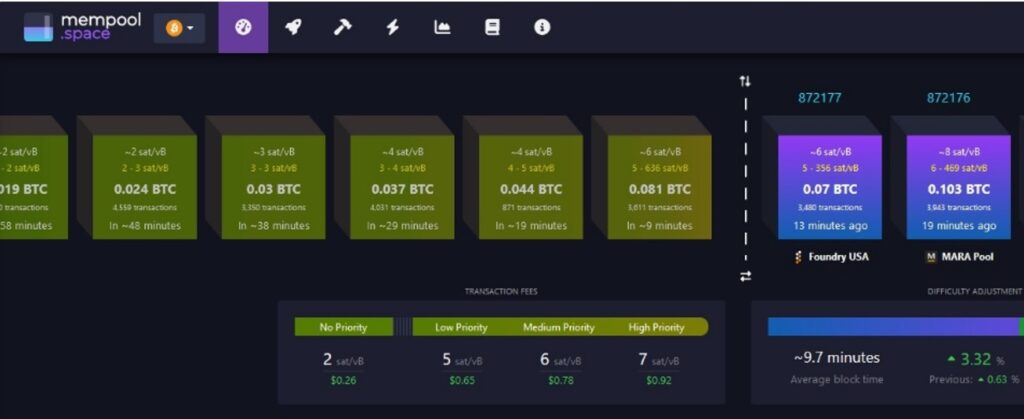
In the example we can see that:
• the fees in the last blocks have been 6 sat/vB (13 minutes ago), 8 sat/vB (19 minutes ago), etc.
• the expected fees in the next blocks (it is constantly updated) are between 2 sat/vB (no priority), 5 sat/vB (low priority) and 7 sat/vB (high priority).
Track the fees during the purchase process (especially if you have published an offer, we will see this later, and no seller has accepted it yet).
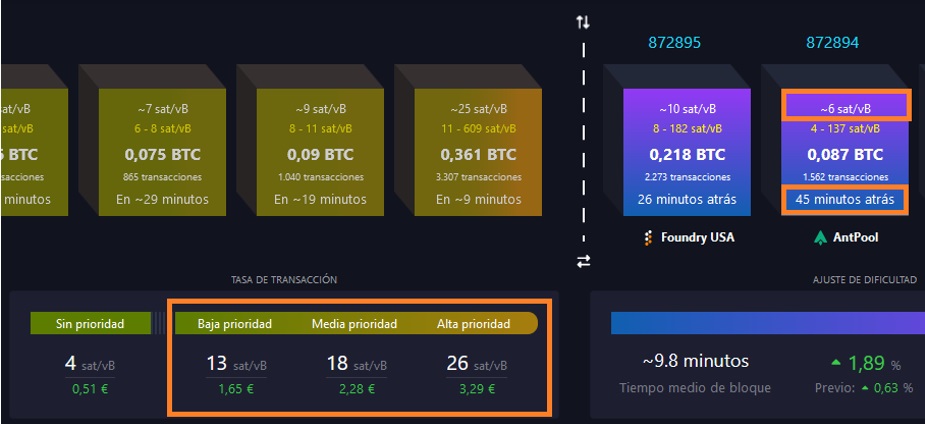
In the previous example, 45 minutes before they were approximately 6 sat/vb and a while later they are going up.
If the fees seem reasonable to us (in my opinion values ≤ 10 sat/vB, but it may vary depending on the current state of the bitcoin network) we can access HODL HODL to start the purchase process.
Keep in mind that transaction fees do not depend on the value being transferred, but on the transaction size within the block (expressed in virtual bytes and function of the number of inputs and outputs).
2. Access and identification
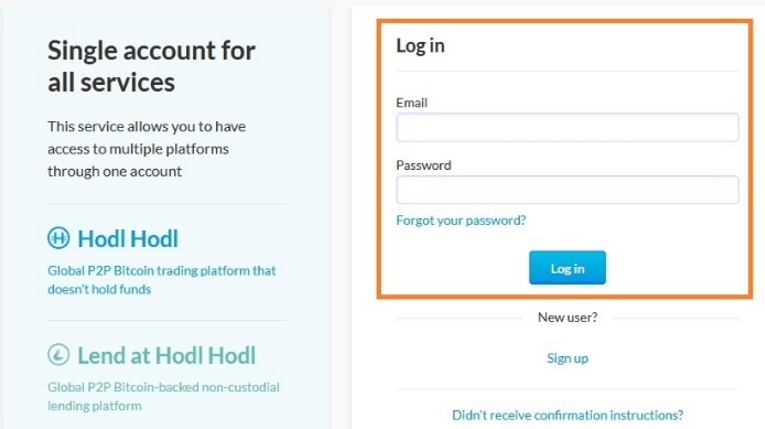
It is recommended to access through the TOR browser, use an e-mail that protects our privacy (for example: PROTON mail) and a sufficiently robust password.
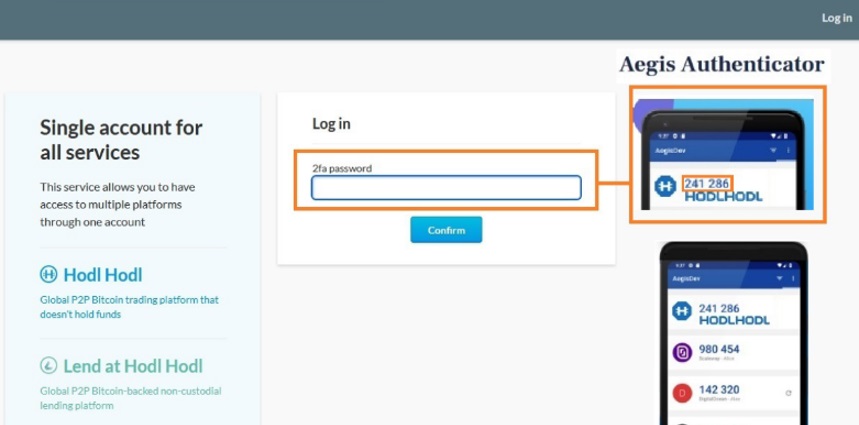
If we use a two-step verification code, it will be required at this time.
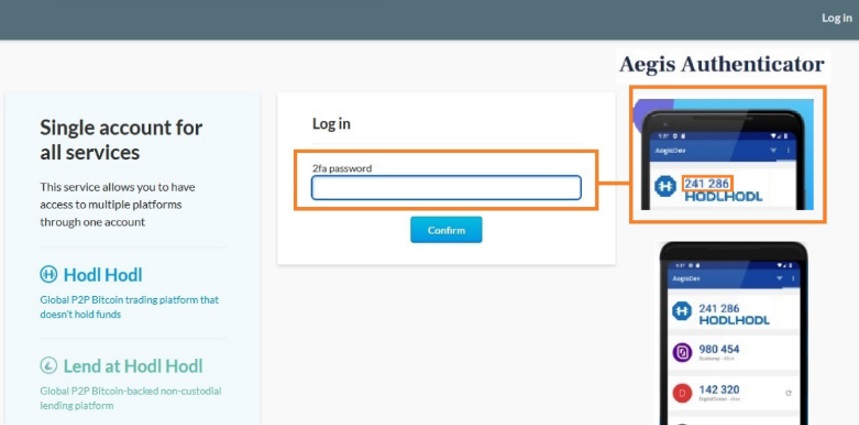
In the case of using AEGIS, we will enter the code indicated for HODL HODL:
We will access this home page:
3. Purchase of existing offers on the platform
To buy bitcoin we will go to [Buy BTC] in the menu at the top, accessing the following screen:
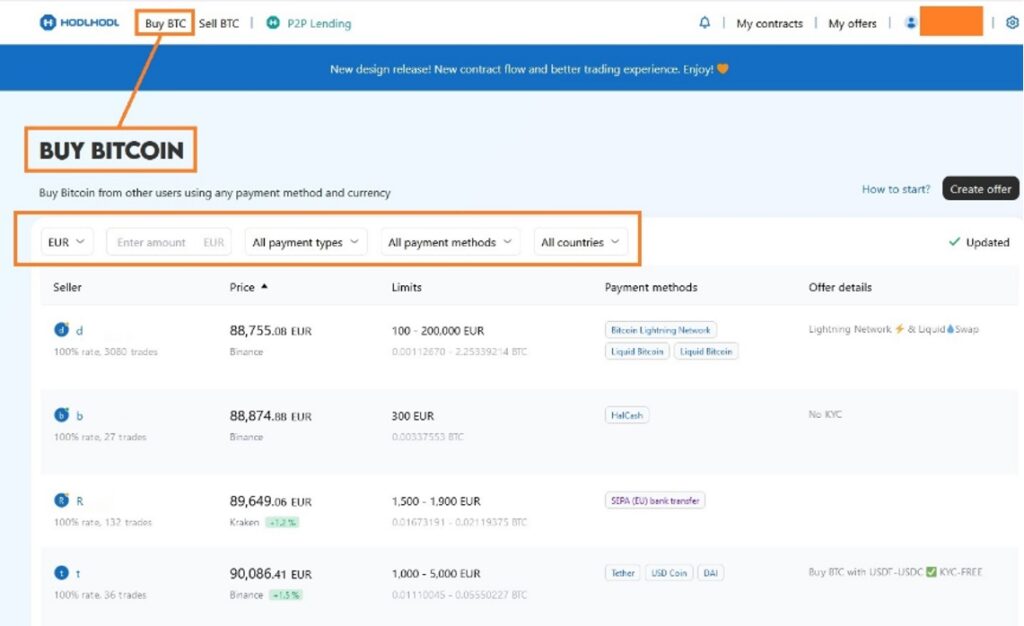
By default, EUR may appear preselected or any other currency, but the rest of the fields will be unselected. However, [Currency] may appear and you must select the currency that interests you.
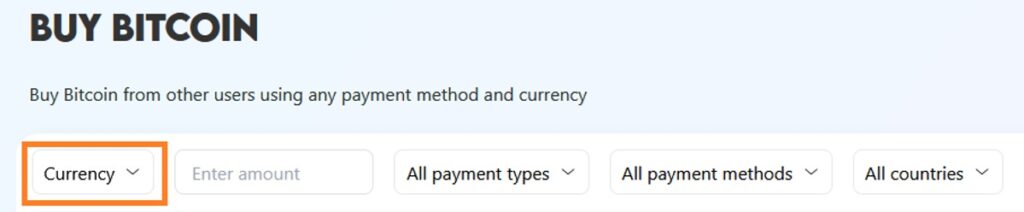
We can, for example, select EUR (without specifying the exact amount yet):
• All payment types: [Bank wire] (bank account)
• All payment methods: [SEPA (EU) bank transfer] (normal SEPA bank transfer, not instant. Mention that they present different offers, they are not unified)
Leave [All countries] by default to access more offers, unless the payment method limits you to select your country of residence or for another reason.
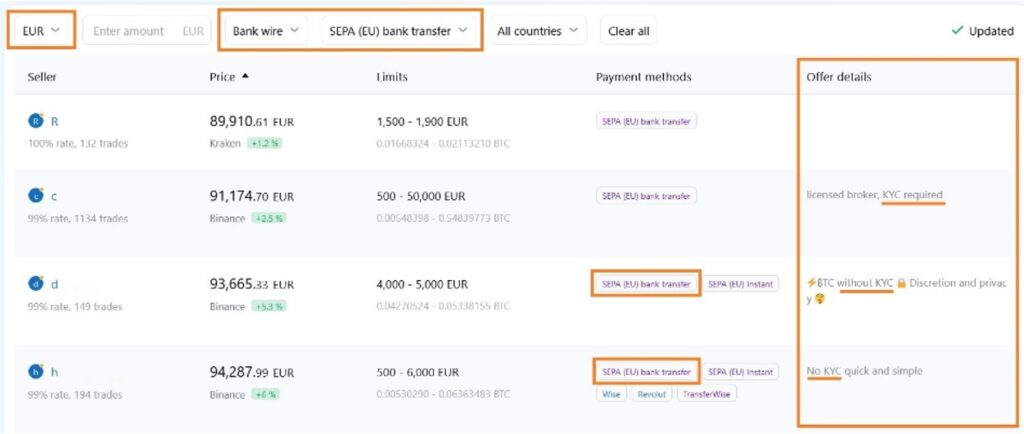
We can verify that there are offers that accept other payment methods, but all of them have in common the method that we have selected.
In addition to this, we can already see which offers will ask for KYC or not. Sometimes nothing regarding KYC is indicated in the offer and there may be surprises, because they request KYC once the purchase has started (if it is expressly indicated that KYC is NOT required, we can rest assured).
I advise rejecting the offer in those cases, but I consider it important to warn you that the seller may «unfairly», in my opinion, block you and that it appears in your statistics that you’ve been blocked by a user.
If we have entered a specific amount, the offers that appear will be limited to those that allow you to buy that specific amount:
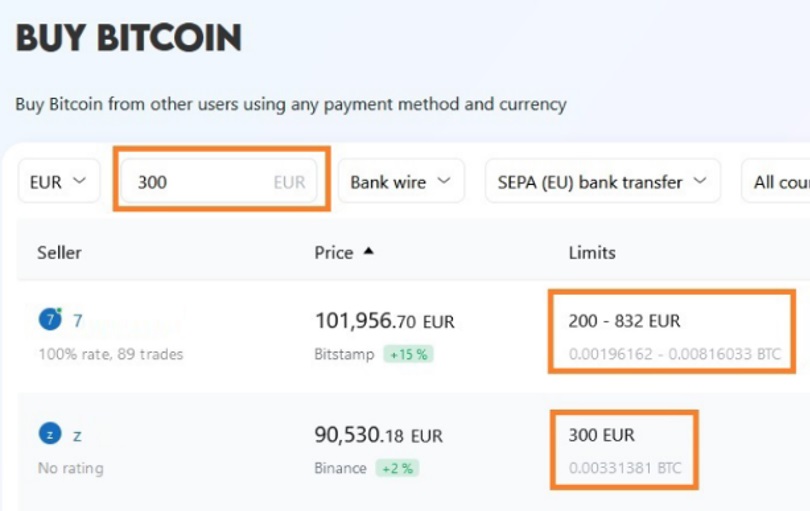
It is better, before entering an amount, to see the existing offers, just in case, for a similar amount to the one you are looking for, a better offer appears.
Distrust an offer that is too good (in price) that does not clarify whether it will ask for KYC or not, probably in the end it will require it (hint: if you think you are the luckiest person in the world for having seen that incredible offer).
Note: I would love for HODL HODL to include an initial drop-down related to KYC, to be able to filter the offers that do not ask for it.
If we change the payment method, the amount, etc., the offers that meet these new requirements will be updated.
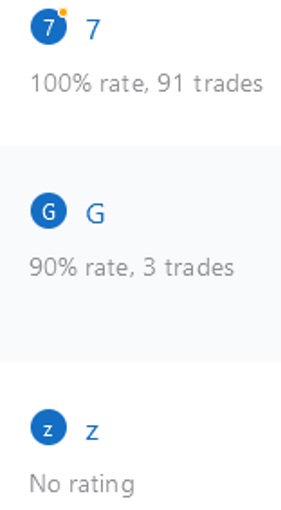
We can also see how many operations each seller has carried out so far (in the example: 91, 3 and none):
Once all the offers have been seen, we can start the purchase process, but clarify that we always have the option of creating an offer ourselves [Create offer] that better suits our needs.
Once the purchase has started, we can write in the chat: «Hola/Hello», to indicate that you can speak those languages, because by default they will write to you in English, so if they know Spanish, they will use it. Or customize it to the languages you know.
But if you don’t know English, don’t be «afraid» to operate with Hodl Hodl, because the conversations, when they occur, are very simple and specific, so that, using any online translator (in parallel in another browser window) you can easily communicate with the seller. In addition, you can tell them to be patient with you because you don’t know English.
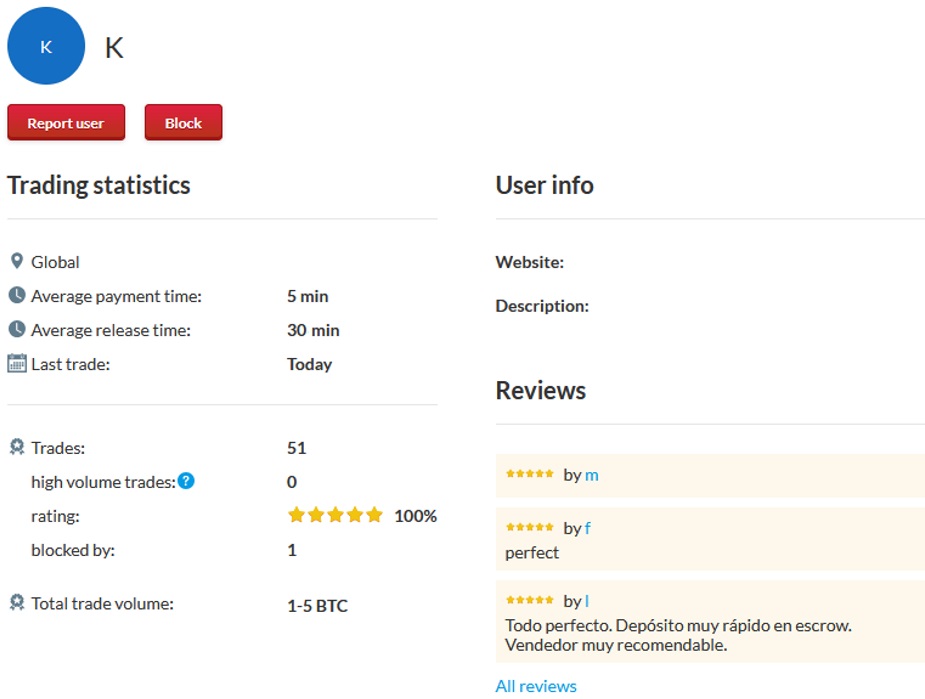
Once the purchase is finished, positively rate the seller, if everything has gone well, since importance is given to the reputation (both of the buyer and the seller) in future operations.
You can consult and they can consult about you, by clicking on your username or that of the seller, the following information:
4. Creation of an offer on the platform
We will click on [Create offer] if we choose to create a personalized offer:
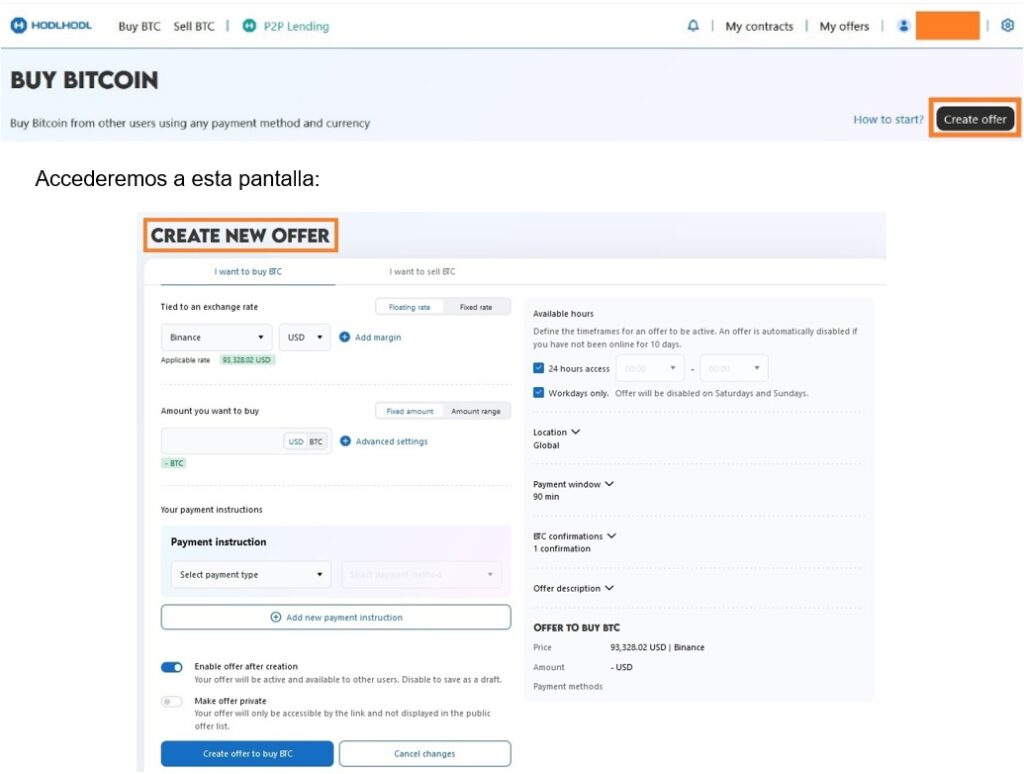
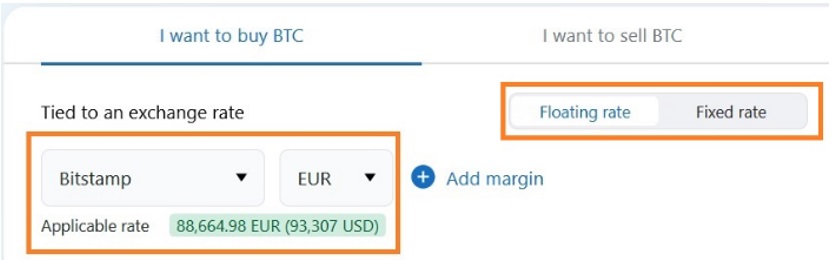
We can select to buy a fixed amount [Fixed rate] or an amount that varies depending on the market price [Floating rate]. The variation in price can be associated with a specific platform ([Bitstamp] for example).
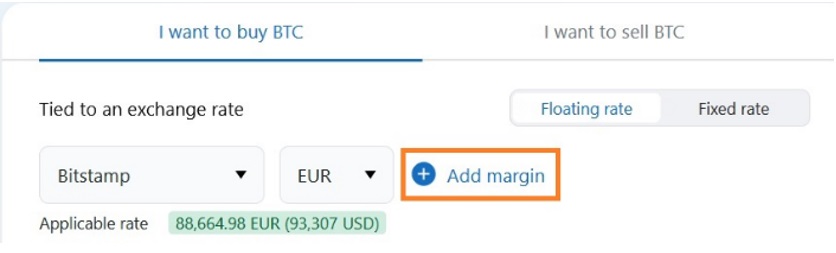
If we have selected [Floating rate] we can add a margin to the market price [Add margin]:
(+) upwards: a higher price than the market is paid [favors the seller]
(-) downwards: a lower price is paid [favors the buyer (you)]
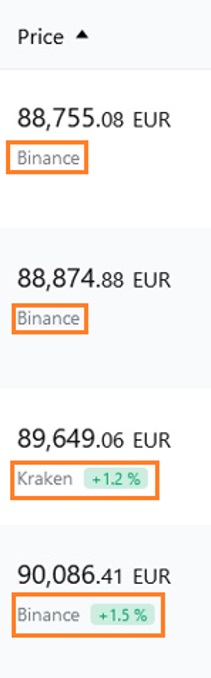
It is advisable to see the offers that are published, to see what margins are being applied, so as not to be left out or be of little «interest to the seller (in the example there are two without adding a margin and others adding to Binance 1.2% and 1.5%):
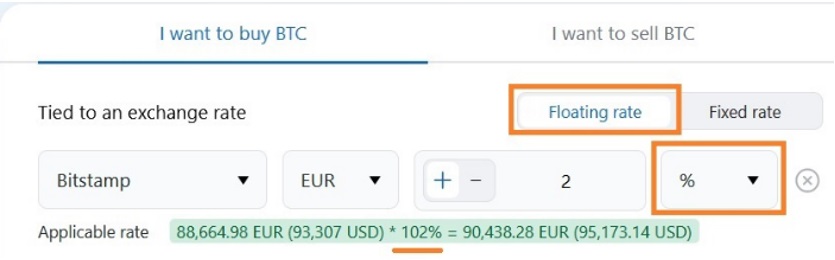
There are two possibilities regarding the margin to be applied:
It can be obtained by adding (or subtracting) a fixed amount to the market price [EUR]:
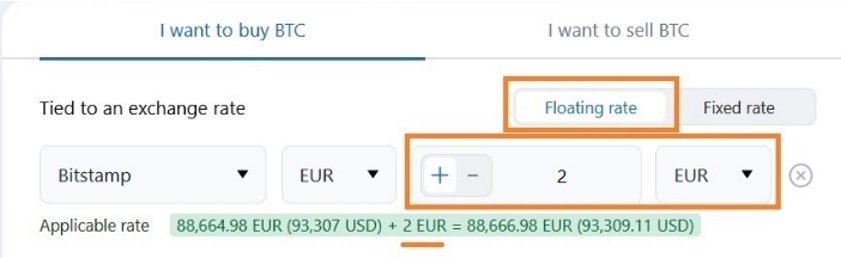
Or instead of an amount, a percentage [%]:
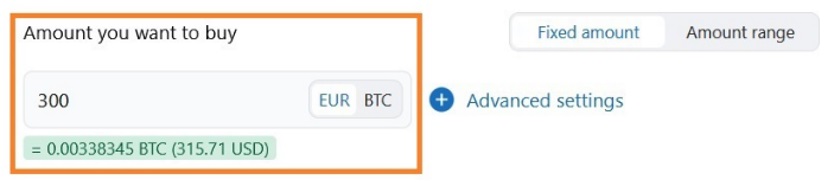
We must indicate either the amount we want to buy [Fixed amount]:
Or an interval in which we would like to buy [Amount range]:
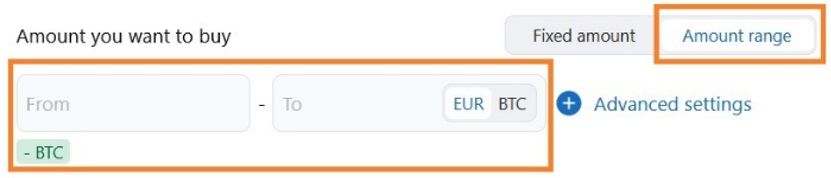
In the example, it has been indicated that we want to buy between €150 and €300, in this way we can access sellers who had planned to sell between those amounts, increasing the chances that they will accept the offer. The seller will be the one who selects the specific amount that he is going to sell to us within that range.
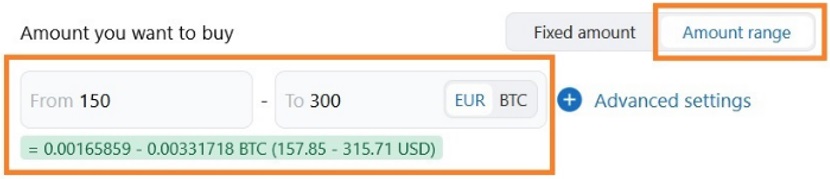
If you choose a transfer as a payment method, set amounts that are not round (for example: €143 – €312) and vary them, so as not to always make transfers of the same amounts, nor round numbers.
5. Advanced offer settings
Next, we will focus on a series of advanced settings [Advanced settings] that can be made:

We will access this screen:
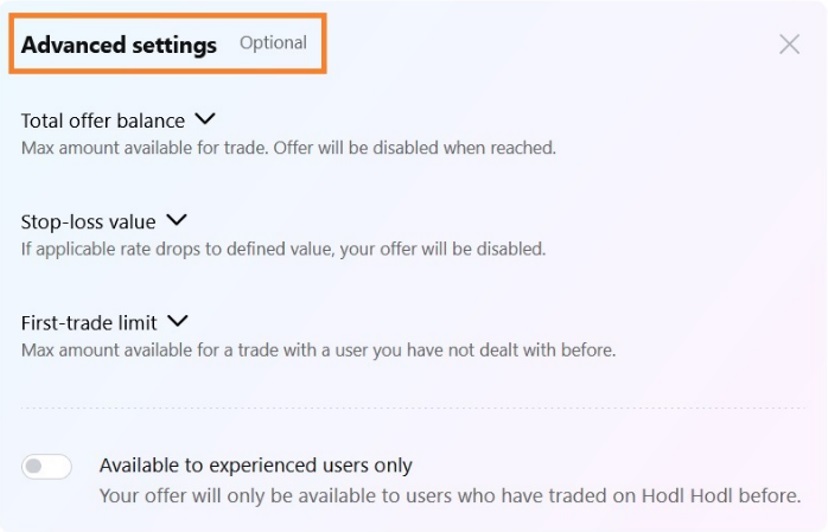
It will not be necessary to complete all the available options, only those that interest us:
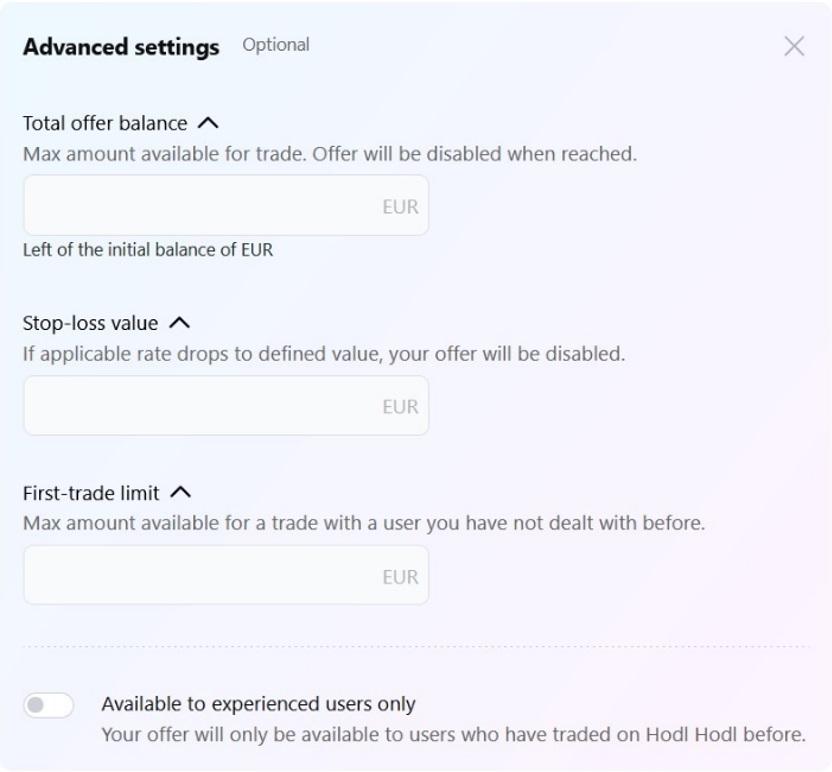
We have the possibility of making four advanced adjustments:
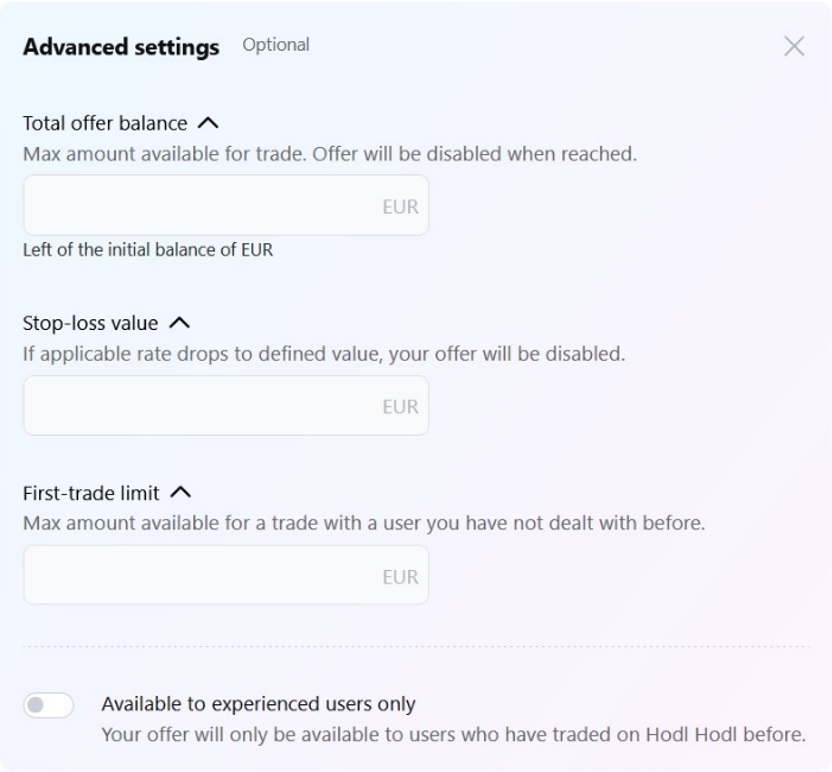
We explain below what it implies to complete it with the amounts indicated in the example:
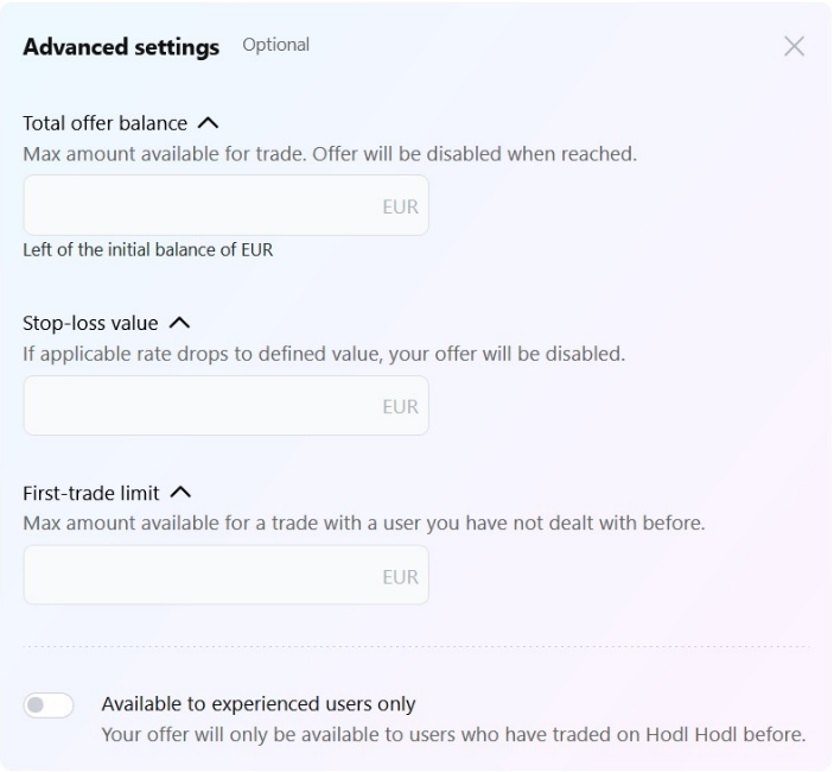
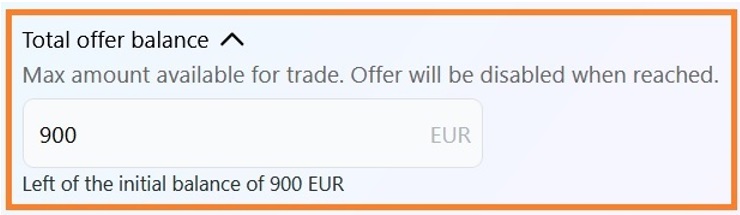
It indicates that you only want to buy a total of €900 (it is the maximum amount you establish for the total exchange and when that amount is reached the offer is deactivated), that is, if your offer indicated purchases of «€300», you could carry out up to 3 purchases (which would add up to those €900):
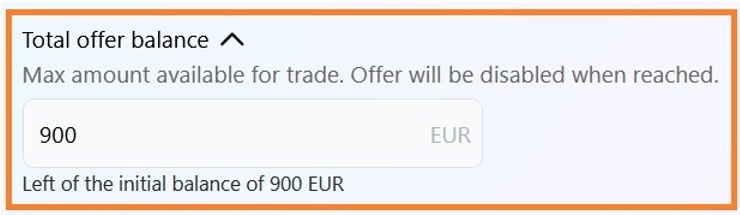
You indicate that if the price drops to €95,000, the offer is deactivated.
Note: It makes more sense in a sales offer, if you do not want to sell below a minimum value.
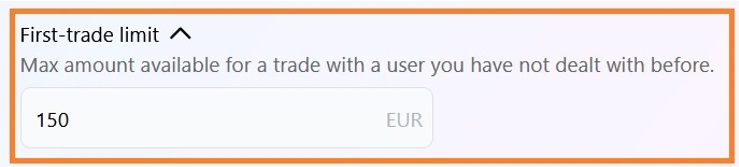
It indicates if you want to limit the maximum amount for the first operation you carry out with a seller (it is necessary that the offer be for a price range that contains that amount [Amount range], otherwise this option cannot occur because it is a fixed amount).
And this last adjustment, if you only want to deal with users who are not new to the Hodl Hodl platform, that is, who have operated before:

Next, we must indicate the form (or forms of payment) that we want and/or can use:
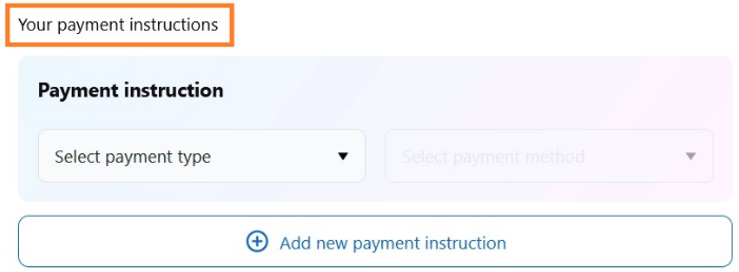
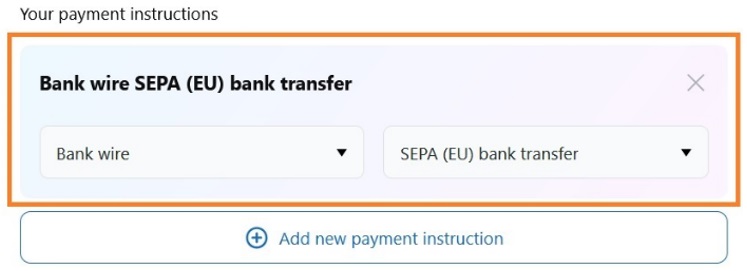
For example: [Bank wire] → [SEPA (EU) bank transfer]:
If a transfer is chosen as the payment method, do not indicate anything related to bitcoin in the concept of the same, although it is usual for them to ask you not to mention «bitcoin»). For example: «Mountain bike», etc.
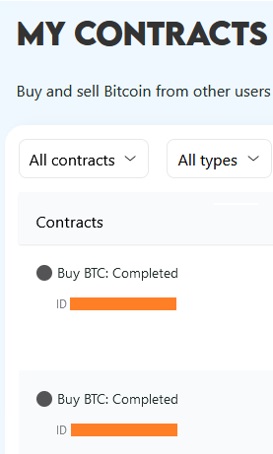
Note: Sometimes the seller may ask you to indicate the contract ID as the concept of the transfer, for this, go to the contract in the [My contracts] section and copy the number that appears next to ID (in this example the contracts are already closed):
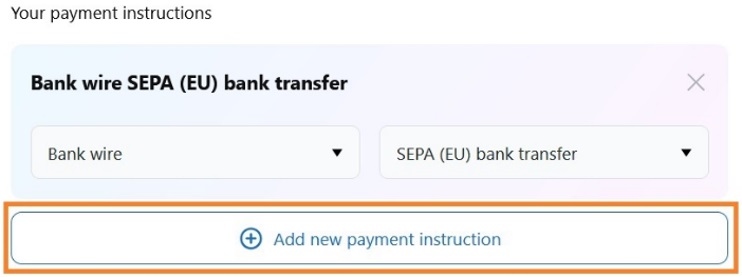
To add more forms of payment [Add new payment instruction], this expands the options for accepting our offer.
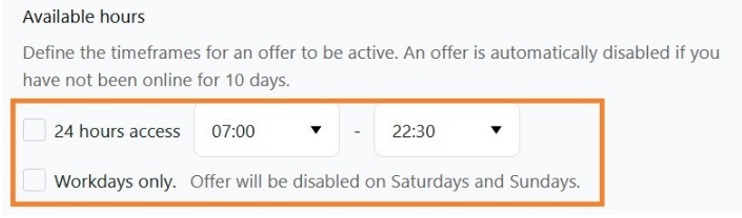
By default the offer will be active 24 hours a day [24 hours Access] and from Monday to Friday [Workdays only], but it can be modified.
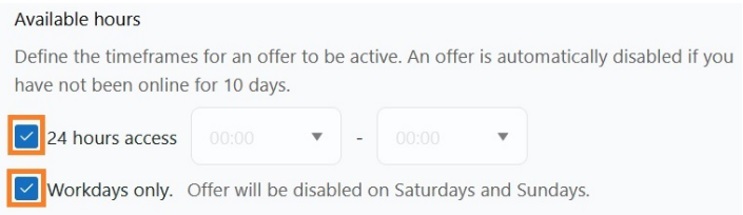
In the following way we would indicate that it is active, for example, while you are not sleeping or want to rest [7:00 to 22:30] and every day of the week:
We still have some more advanced configuration:
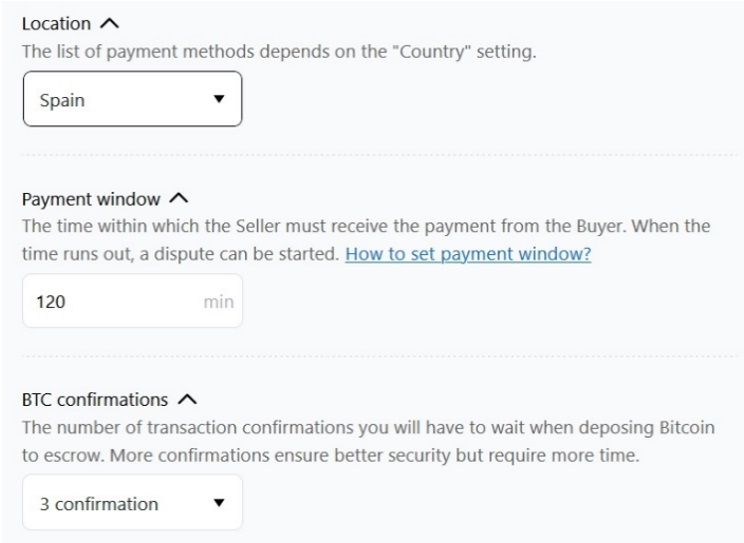
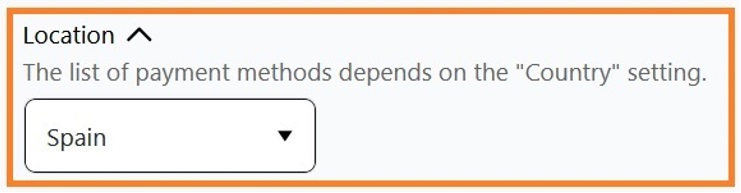
We will leave the location as Global [Location: Global], as I have already indicated before, to access more offers, unless the payment method limits us to selecting our country of residence (Spain [Spain]) or for another reason.
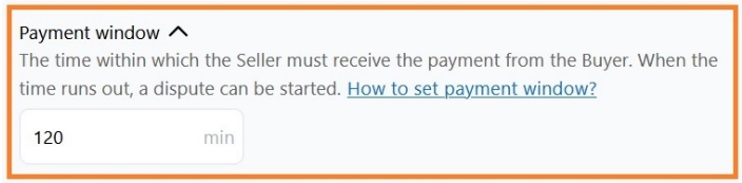
The payment window [Payment window] is the maximum time in which the seller must receive payment from the buyer. If the deadline expires, a dispute can be initiated (between buyer and seller, supervised by Hodl Hodl). That is, it is the maximum time in which you commit to pay the seller [120 minutes] in the example.
I recommend modifying this time if your circumstances change. For example: if in the mornings it is more difficult for you to be attentive to the payment due to work, you can indicate [180 minutes] and in the afternoon you can lower it to [120 minutes].
Note: I never indicate less than [120 minutes], although my average payment is less than 15 minutes, but in this way I have a safety margin for unforeseen events.
I advise using the chat to communicate with the seller and indicate any incident that may delay the payment once they have accepted the offer. For example: «I’m going to sleep, tomorrow at 7:00 I’ll make the payment, I can’t wait any longer, sorry for the inconvenience.» I have never had problems in this regard and sometimes it is the seller who has communicated any incident on their part.
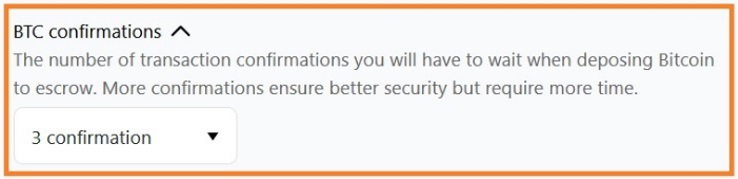
[BTC confirmations] is the number of confirmations you want to wait for the transaction to be confirmed, it should not be a very high number ([3 confirmation] significantly reduces the risk of double spending, but it does not eliminate it completely, but I consider it adequate for medium-sized transactions, for small ones [2 confirmation] is enough).
It is advisable to read specific articles on this topic to determine the number of confirmations that give us peace of mind that the transaction cannot be reversed or if it varies depending on the payment method (Paypal, etc.).
It is necessary to include a description of the offer to clarify any point that you consider important (NO KYC, etc.):
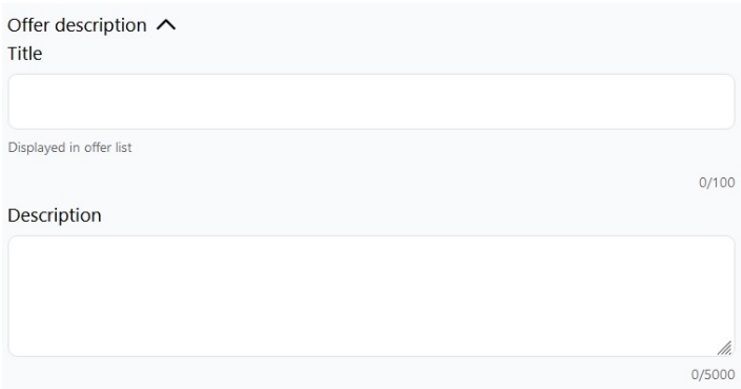
For example:
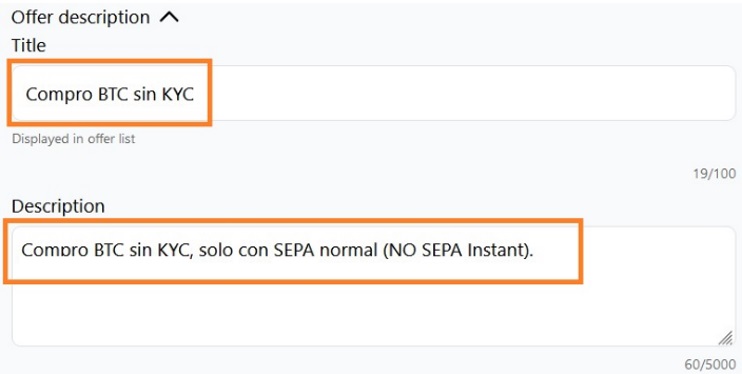
Although in the example it has only been written in Spanish, I recommend making it bilingual (mainly English).
If we do not select that it is enabled after being created [Enable offer after creation], it will remain as a saved draft, it will not be active, but we will not lose it:
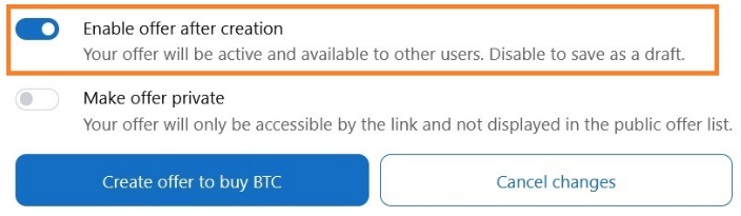
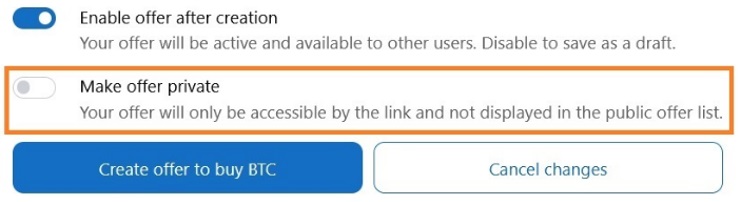
You can create a private offer [Make offer private], in this way you use the advantages of Hodl Hodl, but the purchase is made by sending the link that they provide to a pre-selected seller.
It is not recommended to skip Hodl Hodl for having done many operations with the same seller, because you consider that you already have mutual trust. I know cases in which it has worked, but also cases in which it has not. This is a good option to buy from the seller you want or know and not just anyone.
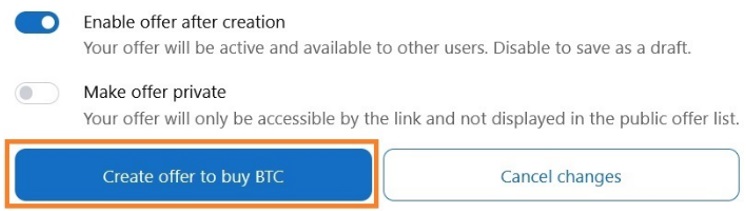
At the end we must create the offer [Create offer to buy BTC]:
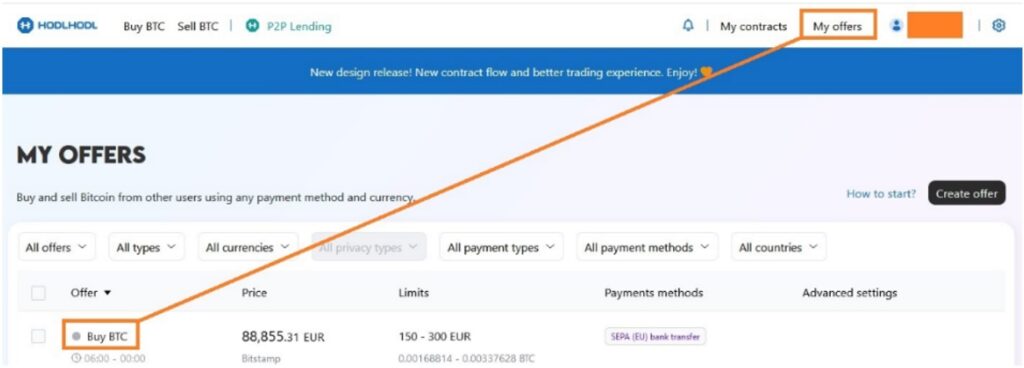
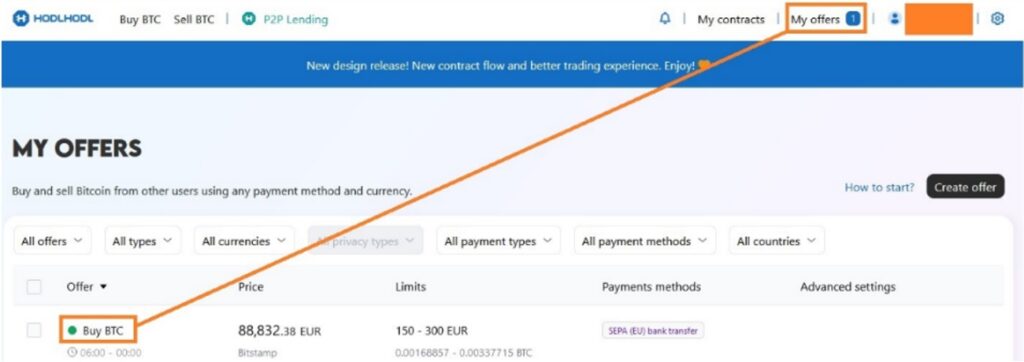
Once we have finished, we can consult our offer in the [My offers] section:
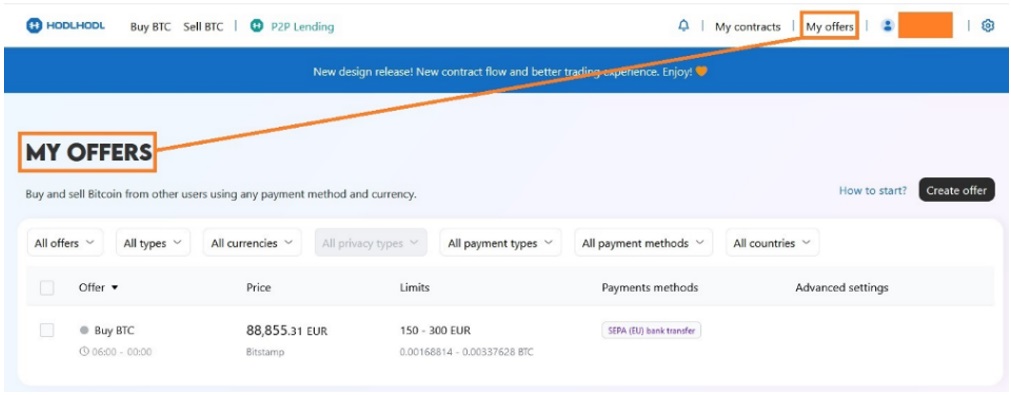
Clarify that if the offer appears in «gray» it is NOT active:
If, on the other hand, it appears in «green» it IS active:
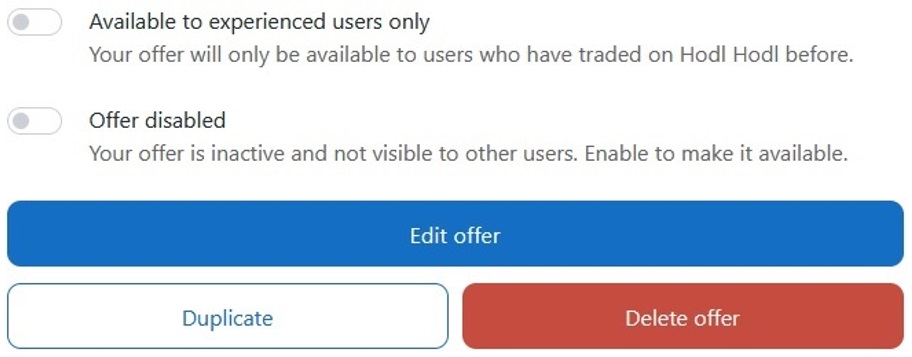
We can access it whenever we want by selecting it to carry out any changes:
For this we must edit it [Edit offer]:
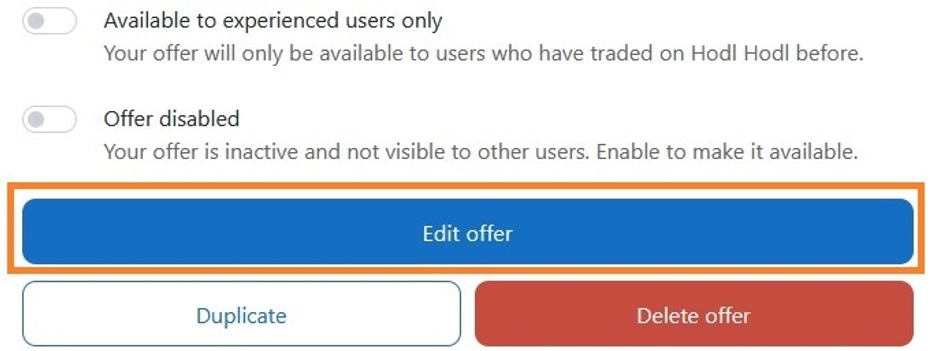
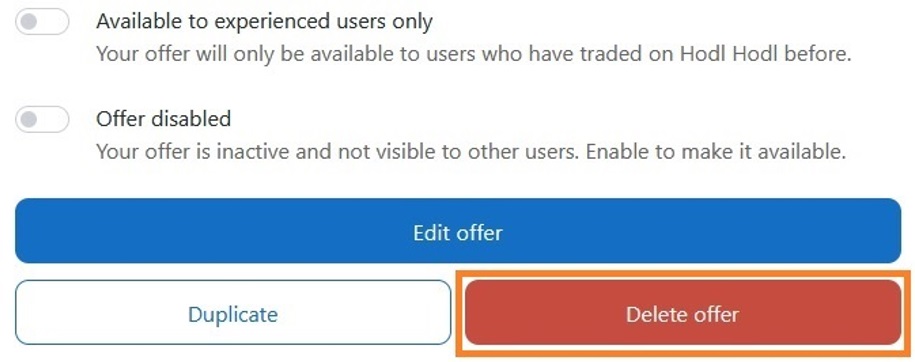
We can delete it [Delete offer] if we are very clear about it, but if, for example, the fees have increased a lot, we can simply choose to disable it until we consider it appropriate:
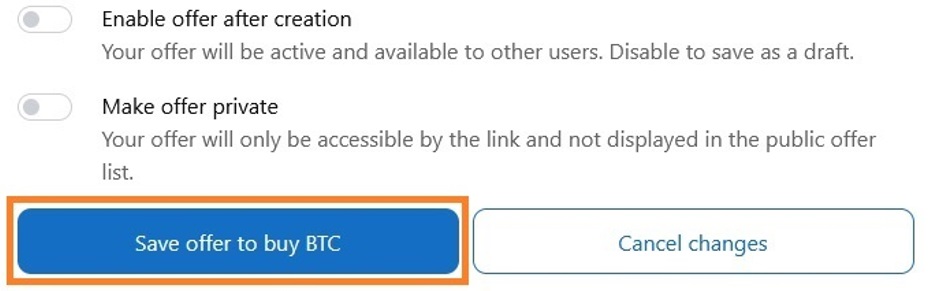
And once the changes have been made, we will proceed to save them [Save offer to buy BTC]:
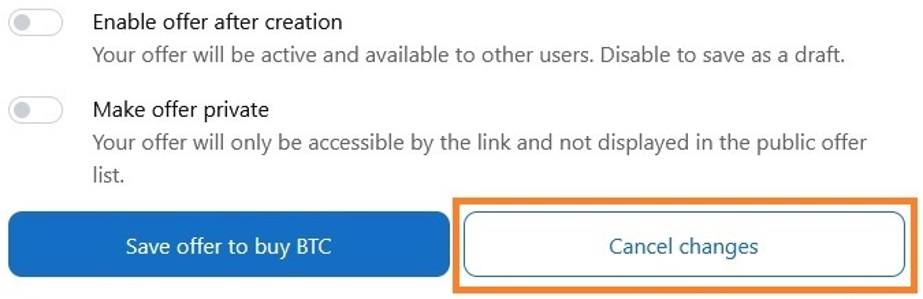
Or cancel the changes [Cancel changes] if we have regretted them, for whatever reason:
6. Modify the status of our offer
Once we have created our offer, we can directly change its status (activate, deactivate, or delete it):
To do this, we select it (if we only have one, lower click) or select the upper click, so that all our offers would be selected:
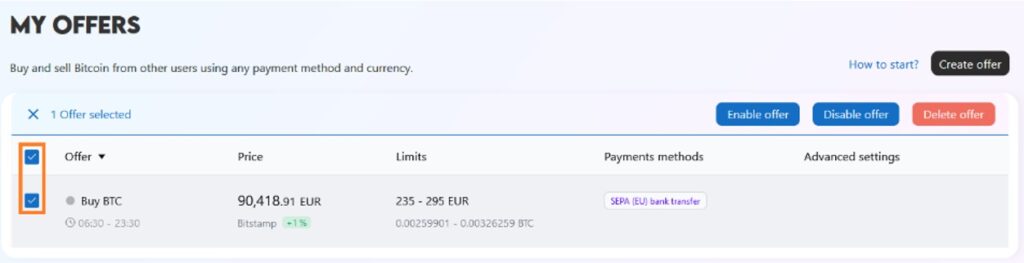
And the next options appear:
[Enable offer]: Activate or enable offer
[Disable offer]: Deactivate or disable offer → We can recover it later.
[Delete offer]: Delete or erase offer → We will no longer be able to recover it.

7. Reutilización de direcciones
We should never reuse addresses when buying bitcoin, for privacy reasons. Therefore, we must use a different address for each purchase operation.
Note: If you try to change the address you have saved on the platform, because you have already used it once, do not do it from the Tor browser. Although I always operate from Tor, the operation of changing the bitcoin address does not allow it to be done. The reason is that Hodl Hodl will send a confirmation email to your email address (Proton in my case), but if it is done from the Tor browser, you never receive that email. Therefore, only for this operation, do not use Tor or you will think that it is not possible to make the change and you may be tempted to reuse addresses.
Although it is quite intuitive, I will indicate where you should go to change the bitcoin address.
Over the symbol of our user:

We select [Dashboard]:
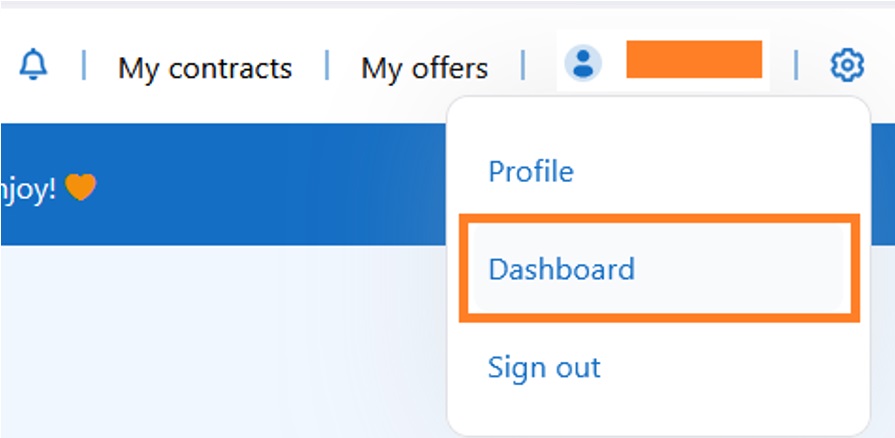
And the following options appear:
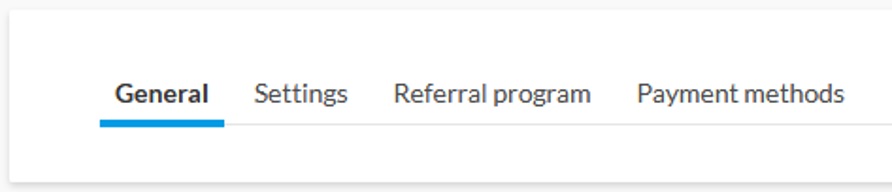
From which we select [Settings] and where it says [Bitcoin address] we paste the new address:
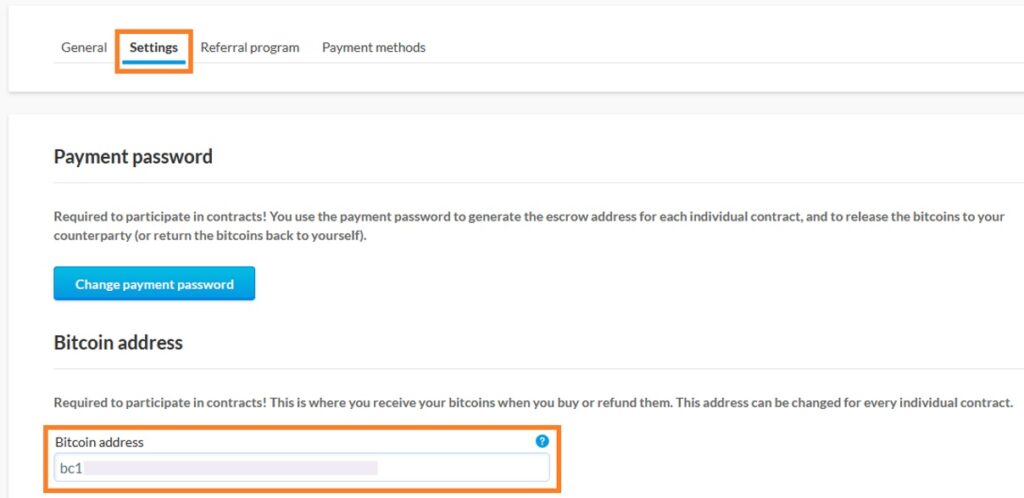
If we read what the [?] indicates:
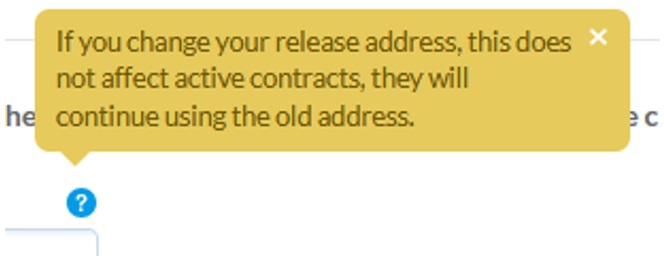
Once finished, at the bottom we select [Save changes]:

At this moment it is when it will ask you, for the change of address, to validate it through a confirmation email. Once validated you will see in this Hodl Hodl tab that it warns you that the new address has been changed successfully.
8. Personalization of the transaction fee type
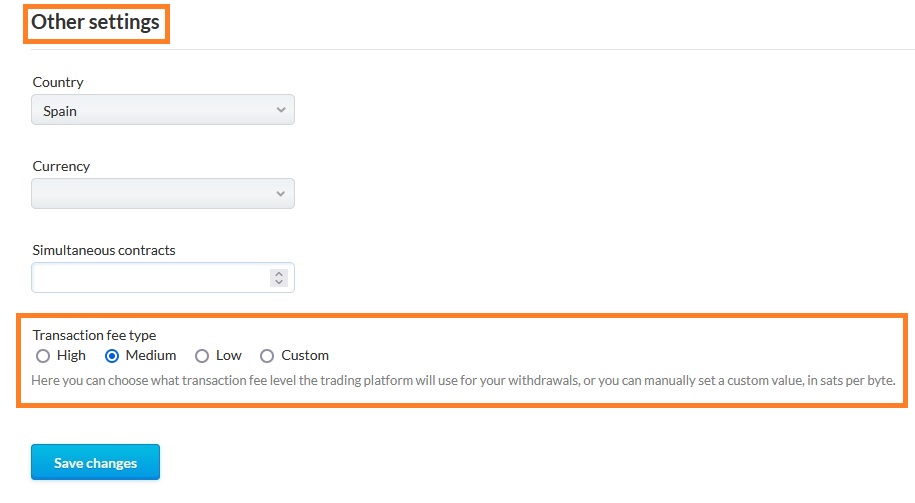
Without moving from the [Dashboard], or from the [Settings] tab, we have in the [Other settings] section the option to improve spending on fees, being able to adjust the [Transaction fee type] parameter.
Note: Remember that we can consult in MEMPOOL.SPACE the estimated value of the fees with Low, Medium or High Priority.
To ensure an acceptable waiting time, which is what I do, we can leave the [Medium] option by default:
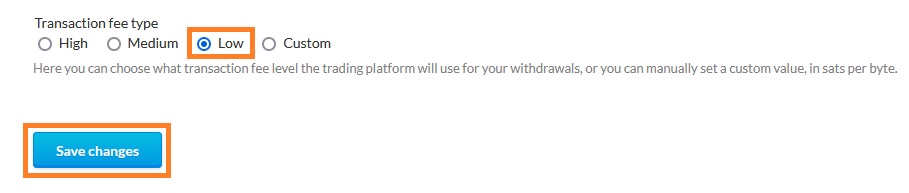
But if we are not in a hurry, and we want to reduce the expense in fees, we can select the [Low] option:
Or we can even choose a specific amount or personalized value of sats/vB, with the [Custom] option:
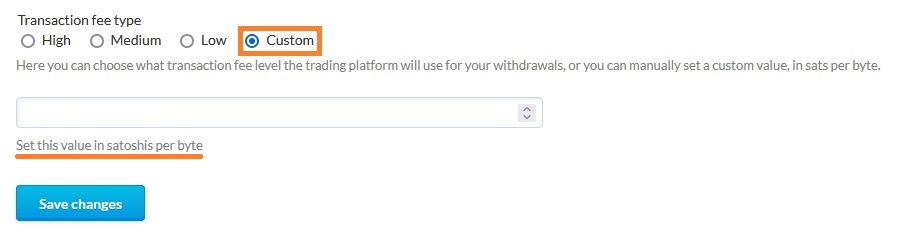
A box will appear for us to indicate the desired value:
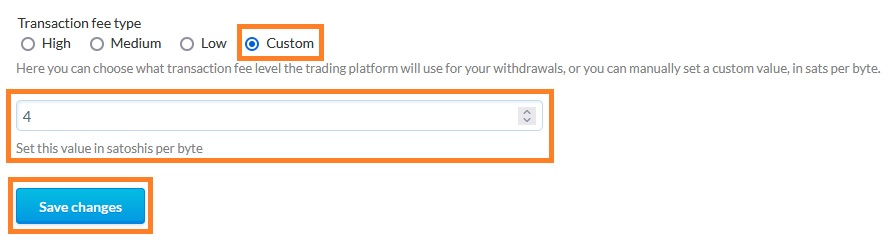
And finally, once the option we want has been specified, we will click on [Save changes] and the message will appear:

No email confirmation is necessary with the save option, so we can stay on Tor.
Note: In the event that the transaction is delayed a lot, for having selected a too low transaction fee or because the network is congested, we could always apply a CPFP (Child Pays For Parent) from our wallet, which is a technique that allows us to accelerate the confirmation of a transaction that has become stuck in the mempool. Although it is not the subject of this article, I think it is interesting to mention this possibility

Deseando aprender cada día algo nuevo sobre bitcoin y con infinitas ganas de ayudar al que empieza o avanza paso a paso. Miembro de BITCOIN Aragón. Puedes encontrarme principalmente en Nostr.